The Dialogue Tree extension
Tip
Try out these game examples! 🎮
The Dialogue Tree extension can be used to quickly create a dynamic dialogue tree behaviour. It comes with actions, conditions and expressions that make it extremely easy to set such a system with text scrolling, animated avatars and conditional dialogues. The example demo project does that in only 16 events.
If you want to make a game that is heavy on the story — be it an RPG, a Visual Novel or something else altogether — this extension will help you focus on your story.
GDevelop bundles a popular story editor called YARN so you can edit your dialogues without leaving GDevelop.
Yarn has been battle-tested on a number of commercial and indie games and is suitable for any story-heavy genre.
Getting started
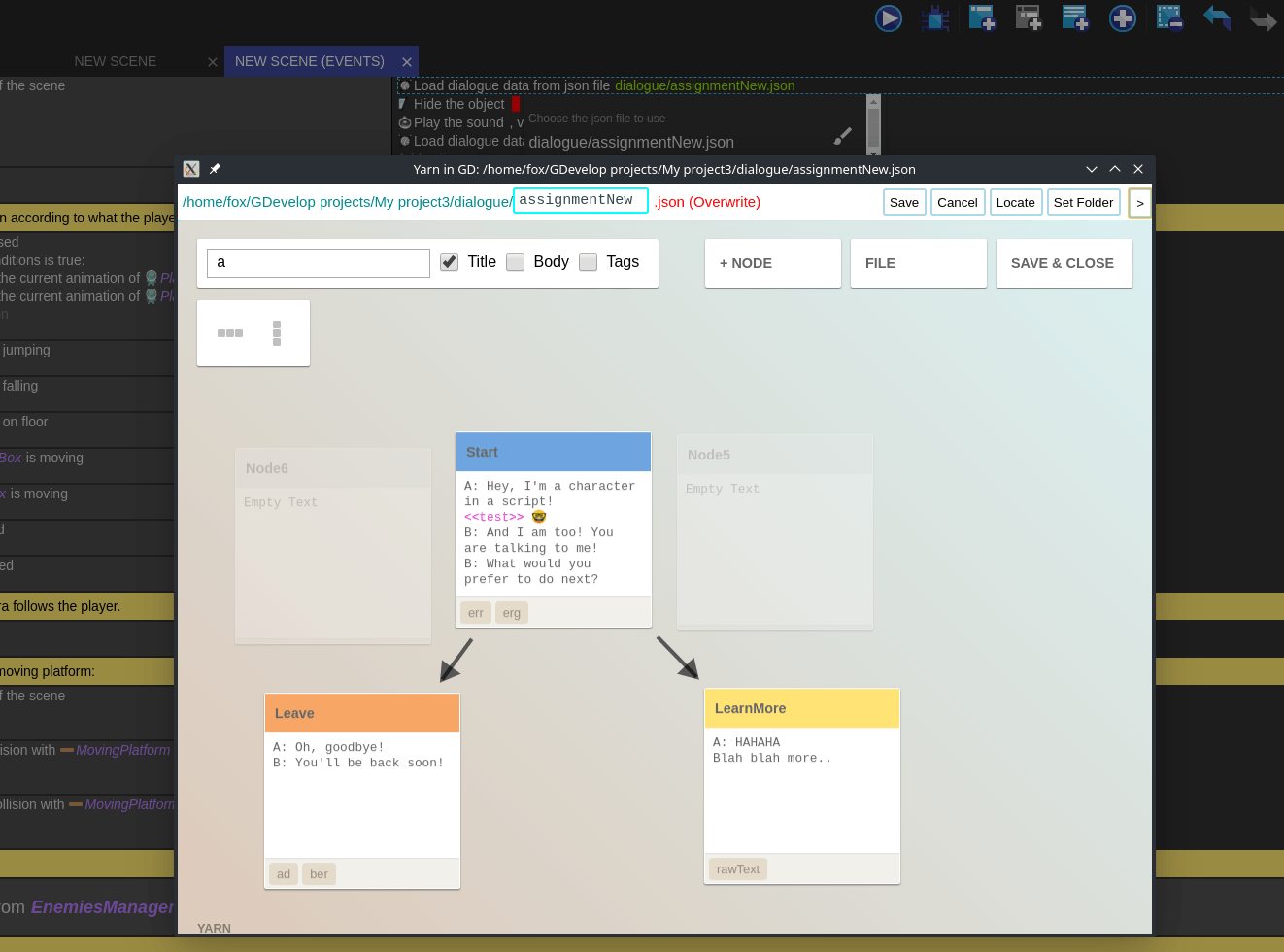
Yarn uses a special JSON file format to store its dialogue data. To create or edit an existing yarn JSON file, you need to first add an action to the event sheet in GD that requires it. That action is called "Load dialogue data from JSON file". Under the resource dropdown - regardless if you have any JSON resources yet - you will find a little brush button, which will let you open yarn and create/edit one.
About Yarn: the anatomy of interactive story syntax
The Dialogue Tree extension is built on top of a javascript library called bondagejs. Yarn and that library follow a syntax that is similar to twine.
It has a very easy to learn, but also very powerful syntax which can be used to create complex story events based on user choices or other events the user has visited.
Yarn Dialogue syntax is designed to be accessible to writers who have little or no programming knowledge. It makes no assumptions about how your game presents dialogue to the player, or about how the player chooses their responses.
Yarn files are built of nodes - those little square notes that are connected by arrows between them. When you have a bunch of them linked with arrows - that forms a dialogue tree. We refer to each node of that tree as a branch. You can have more than one tree in a single file and for example have the dialogues of an entire village worth of NPCs laid down in front of you, with each villager being one of the trees. To edit a node in Yarn, you just double click on it. To close and save it, just click outside of its editor area.
When you edit a node, you are writing in Yarn syntax.
Writing stories in Yarn is just like writing dialogue, but also sprinkling it with behind the scenes hidden to the player instructions wrapped in special tags. These instructions can be used to drive what happens in the game. Depending on <
1. Text line type
The text is what the user will see displayed when they reach the dialogue branch it is on. If you don't put any special wrappers of the other type around your text - it will remain ordinary text. Yarn will give you a hint when that is not the case by changing its colour.
Note
New lines are interpreted by yarn as logical pauses between two text line types. So whenever you write text on a new line - that is also used to tell the game engine to start printing the text on the new line after the player has pressed a button. Of course that behaviour is entirely optional and depends on how you use the extension. Since it is the most common one, it should be noted that it is there by design.
2. <> line type
Commands are hidden instructions wrapped between << and >>. The player never sees them, but GDevelop processes them as events. When using the extension's built-in scrolling logic, a command is triggered as soon as the text scrolling reaches it.
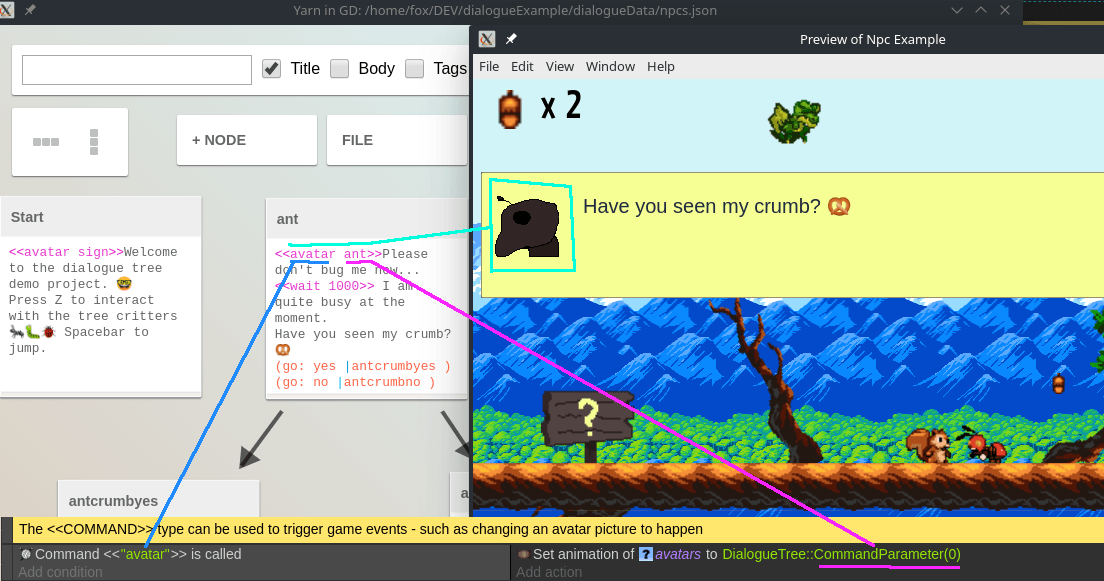
Commands can also take parameters that the engine can use to decide on how to trigger something. To pass parameters to a command, just type them after the first word which is the command, using spaces like this:
<
An example of that in the demo project is the way the animated avatar is changed:
<
Tip
If you are using the extension's built in scrolling functionality, you can insert pauses between text/other commands with the built in <
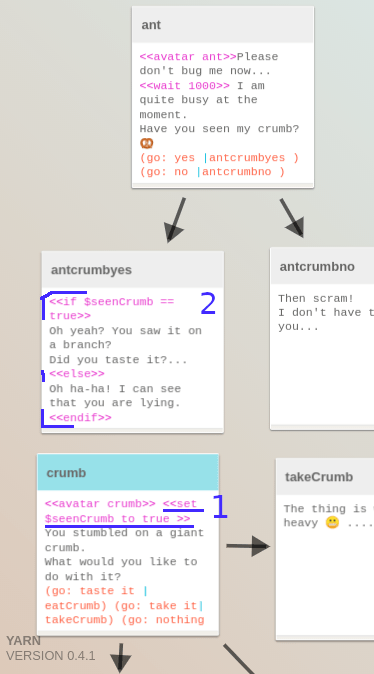
In addition to custom commands, the bondage.js parser has built-in support for variables that can store values and drive conditional dialogue. For example, if a player picks up an item, you can set a Yarn variable and later show different NPC dialogue depending on whether they have it:
(1) <
(2) <
blah blah blah
** <
more blah
** <
other blah
<
-
will tell yarn to check <<if $myYarnVariable is equal to aValue, if so, blah blah blah will be shown
-
if not, it will check if the <<elseif... is true, if so more blah will be shown
-
if all fails, the <
> will trigger other blah to happen. The <> and <> are optional. Don't forget to close it with the <>
Note
Example:
You found a weird rock <
Note
Example at another node tree:
There is a strange well. Peering down, you can only see darkness...
<
Would you like throw the weird rock you found in the well?
[putRockNode](/yes do it)
[otherNode](/I rather not)
<
Don't forget that you can put anything inside this <
Tip
The extension stores all $variables set during the dialogue session. Use the Save dialogue state and Load dialogue state actions to persist them alongside the rest of your game's save data, so players can resume a conversation exactly where they left off.
3. Option line type
This is the type that creates arrows between the nodes. It is what yarn uses to display to the user what choices they can make. The syntax is as follows:
[[player choice|otherNodeTitle]]
[[another choice|anotherNodeTitle]]
The text of the left side of the | is what the player will see. The text on the right side is what you use to tell yarn the title of the node that the player will be sent to if they take that choice.
You can also do
[[anotherNodeTitle]]
This will simply tell yarn to continue to that node, without any user input. Useful when nested in an if statement..
Note
Yarn will autocomplete it for you when you start [[, but if you wonder how to write a |, on most english keyboards its **shift + \ **
Warning
Please note that as of now node titles can not contain spaces, dashes or any strange characters. Just letters a-Z and numbers 0-9
Warning
Avoid using options that contain a link to a non existent node or no link at all. That may cause the extension to crash your game
**Gotchas to watch out for: ** If you try to do conditional options like this:
Ok kids we're gonna go with...
[NotSure](/Actually, I'm not sure yet...)
<<if $robot_head_0_done == 1>>
    [PickRobotMascot0](/Frog Head)
<<endif>>
Yarn will send the player to "NotSure" instead of displaying this as two options, even when the if is true. The correct way to do this would be:
Ok kids we're gonna go with...
<<if $robot_head_0_done == 1>>
    [NotSure](/Actually, I'm not sure yet...)
    [PickRobotMascot0](/Frog Head)
<<else>>
    [NotSure](/Actually, I'm not sure yet...)
    [PickBirdMascot0](/Bird Head)
<<endif>>
If you want to just send the player to another node (PickRobotMascot0) without displaying any options when the if statement is true, you can do:
Ok kids we're gonna go with...
<<if $robot_head_0_done == 1>>
    [PickRobotMascot0](/Frog)
<<else>>
    [NotSure](/Actually, I'm not sure yet...)
    [PickBirdMascot0](/Bird Head)
<<endif>>
Known issues
-
->shortcut syntax may cause a crash. The bondage.js parser requires any text that follows a shortcut option (->) to be indented with tabs; otherwise it is treated as a syntax error. If you want to use this syntax, make sure the body text is tab-indented. -
A space is clipped from text immediately after a
<<command>>. This is a known limitation in bondage.js. Work around it by adding a leading space inside the text on the next line. -
Text underline style is not supported in-game. While the Yarn editor can display underlined text, the underlying renderer does not support text underlining. Other BBCode styles (bold, italic, colour) work normally.
Note
If an error message mentions bondage.min.js, the issue originates in the bondage.js parser, not GDevelop itself. If an error appears while authoring in the Yarn editor (opening or saving files), it is likely a Yarn editor bug rather than a GDevelop issue.
Setting up the event sheet in GDevelop
The best starting point is to open the demo project for the dialogue tree extension — the entire dialogue logic fits in about 16 events.
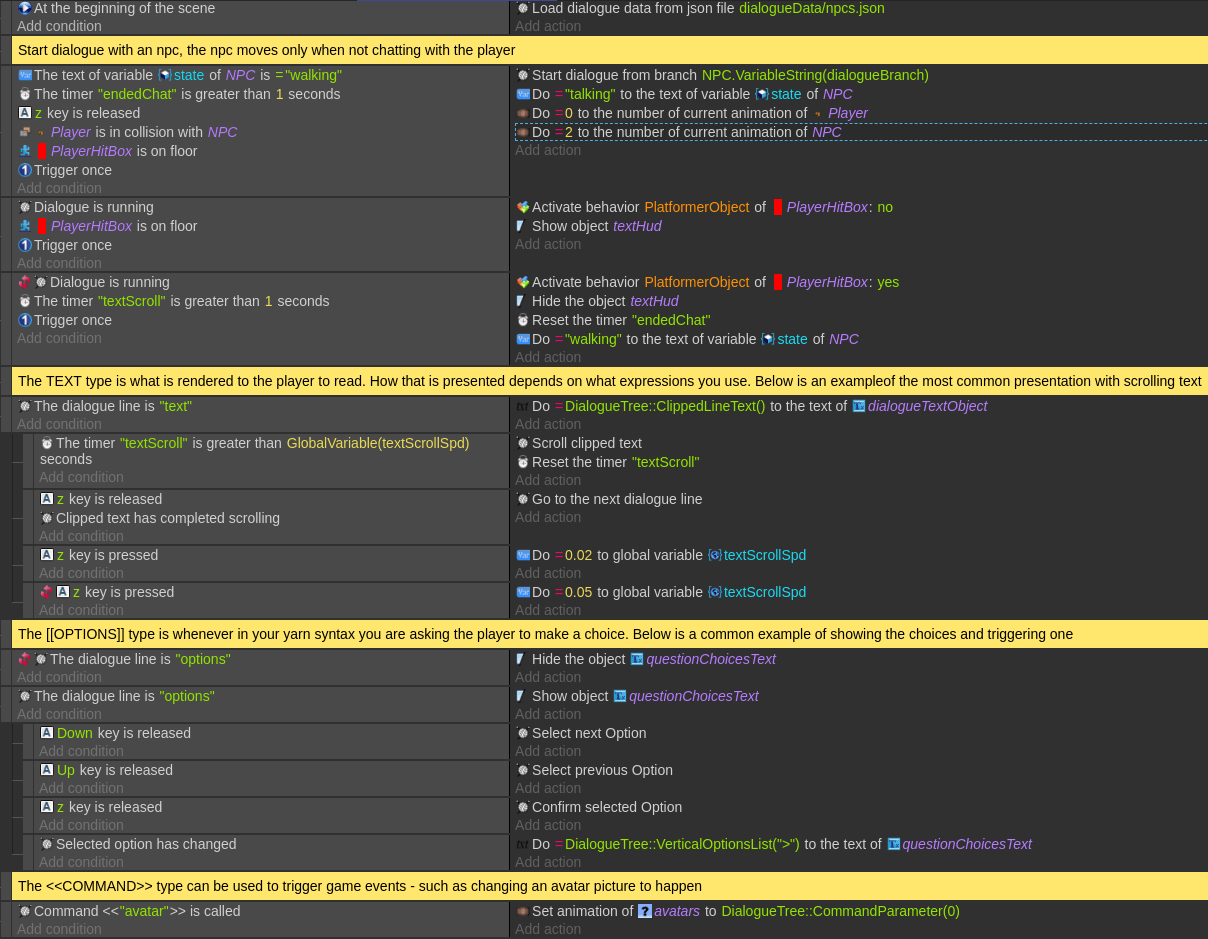
The demo shows the simplest possible setup. The extension contains many more actions, conditions, and expressions for building highly customisable dialogue presentations.
The basic life cycle of a dialogue
- Load the dialogue tree data at the beginning of the game or level using Load dialogue data from JSON file (or from a scene variable).
- Start a dialogue with the Start dialogue from branch action, passing the node title where the conversation begins. A common pattern is to store the starting branch name in each NPC's instance variable so many NPCs can share the same logic.
- Display each line by checking the current line type (text, option, or command) and rendering it accordingly — for example, scrolling text into a text object and showing choice buttons.
- Advance the dialogue with the Go to next line action once the player is ready to continue, or Select option when a choice is made.
- Handle commands by checking the current command name and executing the matching event (change avatar, play sound, trigger cutscene, etc.).
Examples
Reference
All actions, conditions and expressions are listed in the dialogue tree reference page.